
What is ThreadQL?
ThreadQL is a self-hosted application that lets your team query databases using plain English, directly from Slack. Someone asks a question like "how many orders did we ship last week?" and ThreadQL translates that into SQL, runs it against your database, and posts the results back in the thread.
It is built for teams where the people who have the questions are not always the people who know SQL.
How it works in 30 seconds
- A user @mentions the ThreadQL bot in Slack (or DMs it)
- ThreadQL sends the question to an LLM along with your database schema
- The LLM writes SQL and calls ThreadQL's built-in tools to execute it
- Results are posted as a formatted table in the Slack thread
- The user can ask follow-up questions in the same thread — ThreadQL remembers the context
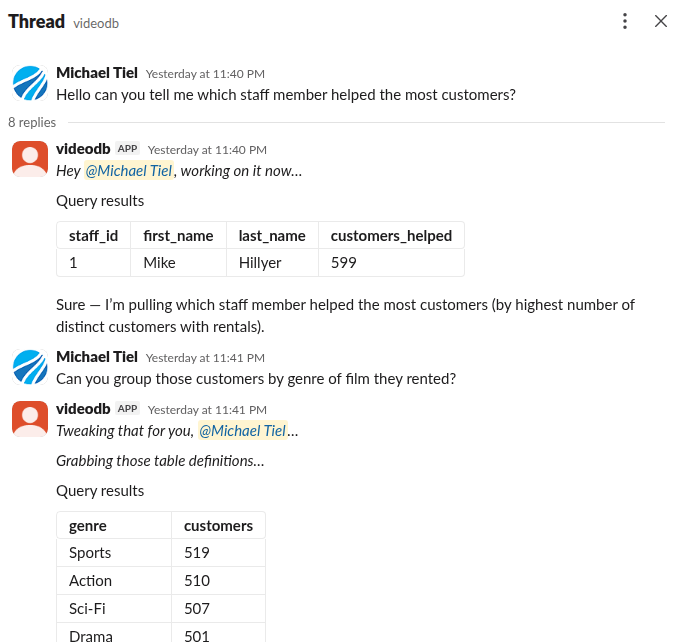
For a deeper technical walkthrough, see How It Works.
Key concepts
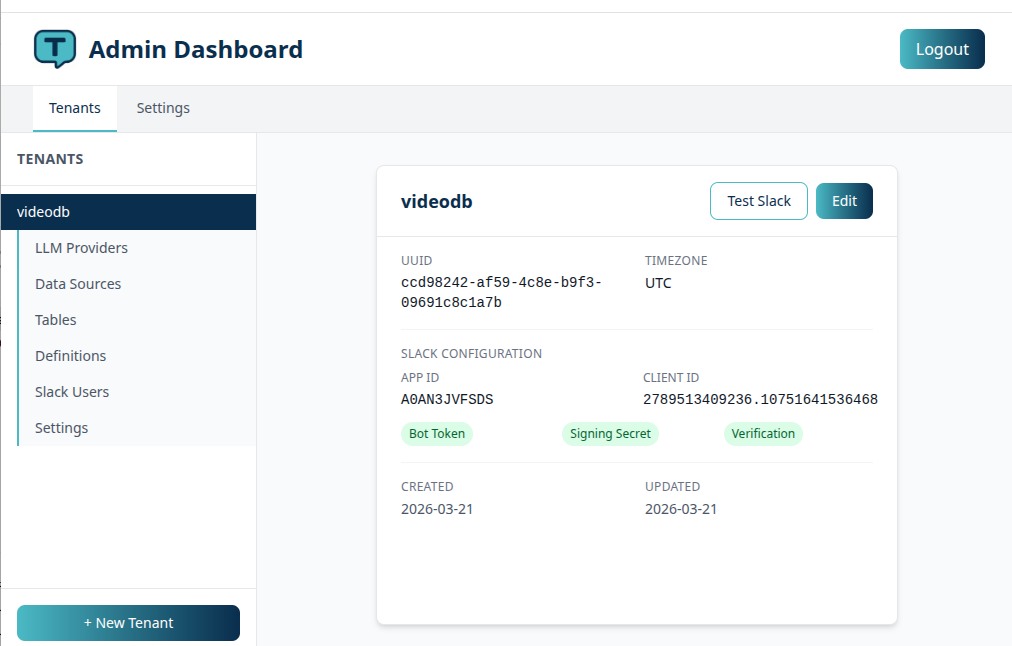
Tenants
ThreadQL is multi-tenant. Each tenant maps to one Slack workspace and one or more llm providers. You can run ThreadQL for multiple teams or clients from a single installation.
Definitions (business glossary)
LLMs don't know what "ARR" or "churn" means in your business. Definitions let you teach ThreadQL your vocabulary.
Use the /threadql define slash command in Slack to add definitions like:
- "ARR = Annual Recurring Revenue, calculated as MRR * 12"
- "active user = a user who logged in within the last 30 days"
- "enterprise customer = a customer on the Enterprise plan with contract_type = 'enterprise'"
These definitions are included in every LLM prompt, so the AI understands your domain language when writing SQL. The more definitions you add, the better ThreadQL gets at answering your team's questions accurately.
Priority tables
When ThreadQL scans your database, it discovers all available tables. You can assign priority scores to the most important ones — the top tables are included in every LLM prompt as schema context.
This is how you focus the AI on the tables that matter. If your database has 200 tables but your team mostly asks about orders, customers, and products, mark those as high priority and the LLM will always have their schemas at hand.
Tables not in the priority list can still be queried — the LLM can request their schemas on demand using a built-in tool.
CSV export
For queries that return large result sets, ThreadQL can export to CSV:
- Small results (up to 1,000 rows): exported synchronously and uploaded directly to the Slack thread
- Medium results (1,000–2,000,000 rows): exported in the background, with a download link posted when ready
- Very large results (over 2,000,000 rows): denied to protect system resources
Follow-up queries
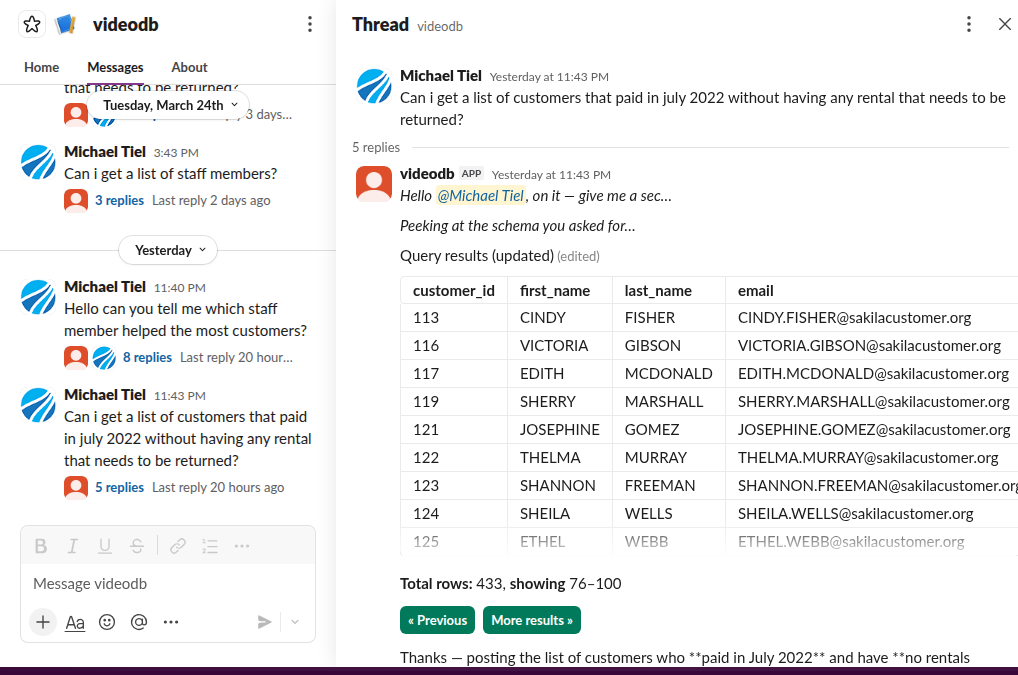
When a user replies in the same Slack thread, ThreadQL treats it as a follow-up. The full conversation history (previous questions, SQL generated, and results) is included in the prompt, so the LLM can refine, drill down, or pivot based on what came before.
Privacy by design
ThreadQL is careful about what data it sends to the LLM:
- Table schemas (CREATE TABLE definitions) are sent so the LLM knows your database structure
- Aggregate results (counts, sums, averages) are returned to the LLM so it can write a natural-language answer like "There are 42 active users"
- Full result sets (the actual rows of data) are never sent to the LLM — they go directly from your database to Slack, bypassing the AI entirely
This means sensitive or personal data in your tables is not exposed to third-party LLM providers. The LLM sees the structure of your data and summary statistics, but never the individual records.
Security
Encrypted credentials
All sensitive credentials — database passwords, Slack tokens, LLM API keys — are encrypted at rest using Laravel's encryption, which is tied to your APP_KEY environment variable. If your ThreadQL database were ever leaked, the credentials stored in it would be useless without the APP_KEY.
This means protecting your APP_KEY is critical. Keep it in your environment configuration (not in version control) and rotate it if you suspect a compromise.
Read-only database access
ThreadQL is designed to only execute SELECT queries. The LLM is instructed to write read-only SQL, and the application validates this before execution.
Strong recommendation
Even though ThreadQL enforces SELECT-only queries at the application level, you should always connect it to your database using a read-only user or a read replica.
Create a database user with only SELECT privileges:
-- MySQL example
CREATE USER 'threadql'@'%' IDENTIFIED BY 'strong-password';
GRANT SELECT ON your_database.* TO 'threadql'@'%';
This gives you defense in depth — even if an LLM were to produce a non-SELECT statement, the database itself would reject it.
User approval
You can optionally require admin approval before Slack users can interact with ThreadQL. Unapproved users receive a message directing them to contact their admin.
Tested LLM providers
ThreadQL works with any LLM provider supported by Prism PHP. It has been tested with:
| Provider | Model | Notes |
|---|---|---|
| Anthropic | Claude Haiku 4.5 | Good balance of cost and quality |
| Anthropic | Claude Sonnet 4.5 | Higher quality, higher cost |
| OpenAI | GPT-5 Nano | Budget-friendly, solid performance |
| OpenAI | GPT-5.4 Nano | Budget-friendly, solid performance |
| z.ai | GLM 4.7 | Good alternative provider |
| MiniMax | MiniMax 2.5 | Budget option |
General advice: ThreadQL performs well with the low-cost tiers from major LLM providers. You don't need the most expensive model — a capable small model handles SQL generation well. Start with a budget model and upgrade only if you find the SQL quality insufficient for your schema complexity.
You can configure multiple providers with automatic fallback — if the primary provider fails (rate limits, outages), ThreadQL tries the next one.
Getting started
Recommended rollout approach
Start with your dev or data team. Let a small group of technically-minded people use ThreadQL first so you can:
- Add definitions using
/threadql defineto teach it your business vocabulary - Use debug mode (
/threadql debug on) to see the SQL being generated and check if the LLM understands your questions well - Tune priority tables so the most important schemas are always in context
- Build confidence before rolling it out more broadly
This lets you refine the experience before non-technical users encounter it.
Ready to install? Head to the Installation guide.
Already installed? Jump to Setup to connect your Slack workspace and datasource.
Want to understand the internals? See How It Works.